
Camera HD for Android - 4K Cam
Antheia ToolsPhotography
4.432.00 Reviews
- Version
- 14.0
- Installs
- 500.00K
- Age Rating
- Everyone
Screenshots
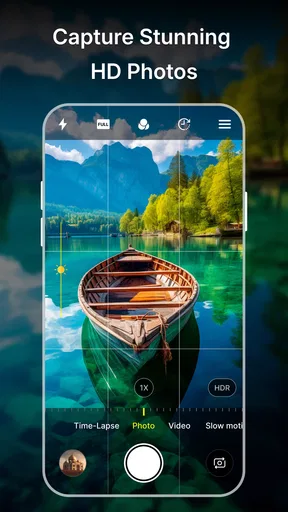
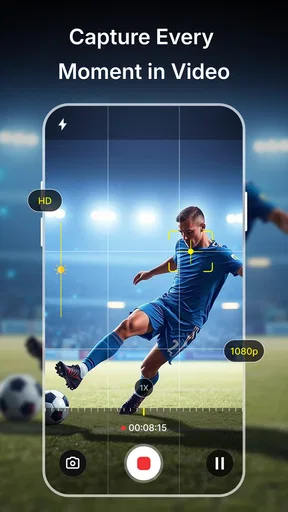
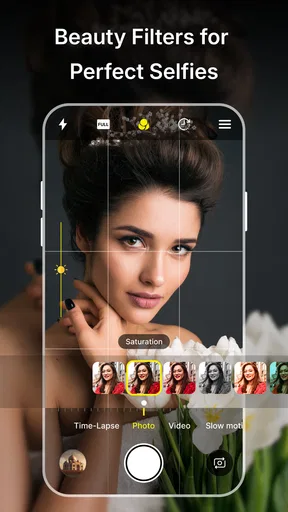
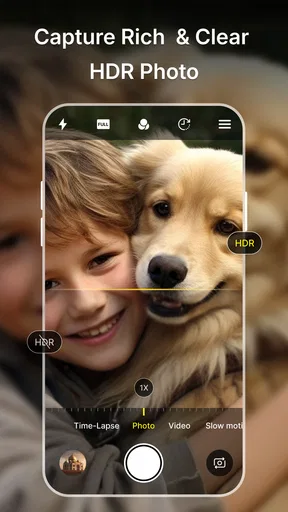
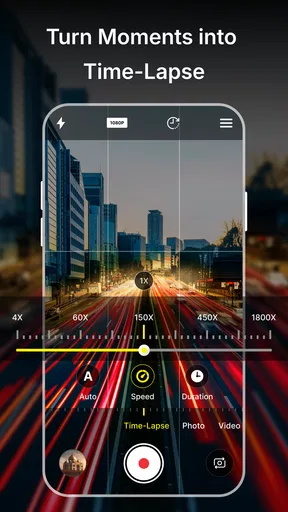
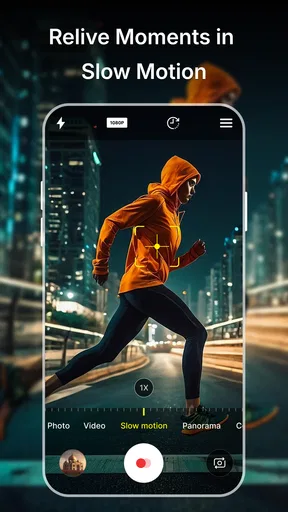
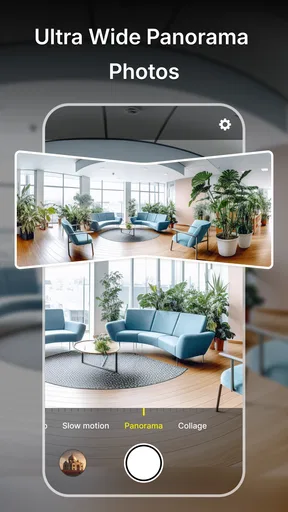
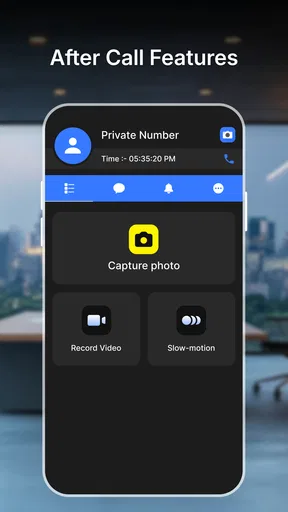
Our Review of Camera HD for Android - 4K Cam
 Analysis by Appyee
Camera HD for Android - 4K Cam is the kind of photography app I reach for when the default camera feels too limited but I do not want to learn a complicated professional suite. I found its appeal in the straightforward idea: open the camera, adjust the controls that matter, and take a sharper-looking photo or video without turning every shot into a technical project. It belongs to the photography category, is free to use, and is suitable for Everyone, so it is easy to consider for family phones, casual creators, and anyone who wants a little more control over everyday images.
The app is developed by Antheia Tools and has built a respectable audience, with over 500 thousand installs and an average rating of 4.4 from around 1.7 thousand ratings. Those figures do not automatically make it the best camera for every phone, but they do suggest that its simple approach works for many people. I tested it with a practical mindset rather than chasing perfect laboratory results: how quickly can I frame a shot, how useful are the available controls, and does the app make repeatable photography easier?
My short answer is that it works best as a flexible everyday camera. It can be useful for quick portraits, food photos, documents, travel clips, and social-media-ready images. However, I would not treat the words “HD” or “4K” as a guarantee that every device will produce cinema-quality results. The phone’s own camera hardware, image processing, storage, and supported recording modes still make a major difference.
How I built a reliable everyday workflow
I build a dependable routine by keeping each shooting session simple: decide what the image needs to show, prepare the light and framing, then check a test shot before repeating the setup. That approach is especially helpful when I am photographing several similar items or capturing a quick family moment, because it reduces rushed choices without relying on any one setting to fix everything. The next section looks at how the available options affect that routine and where I draw the line.
Start with a repeatable shooting routine
My preferred way to use Camera HD for Android - 4K Cam is to begin with a simple baseline instead of changing every option before every picture. I first clean the lens, hold the phone with both hands, and decide whether the shot is mainly about detail, people, movement, or atmosphere. That decision matters more than a dramatic filter. A clear subject and steady framing usually improve the result more than endlessly adjusting controls.
For a normal daylight photo, I keep the composition uncomplicated. I place the main subject away from the exact center when the scene gives me room, check the edges for distracting objects, and take a second frame rather than trusting the first one. This habit is particularly useful with children, pets, and street scenes, where a tiny movement can ruin an otherwise good image. The app is quick enough to support this style of shooting without making me feel that I am operating a full desktop camera system.
For video, I decide the orientation before recording. Rotating halfway through a clip creates an awkward result that no filter can really fix. I also leave a short pause before speaking or moving the camera. That small buffer makes trimming easier later and reduces the chance of cutting off the first word or the beginning of an action. Camera HD for Android - 4K Cam is more useful when I treat it as part of a workflow rather than as a magic image enhancer.
A realistic day-to-day example
Imagine I am preparing a small item for an online listing. I use a clean background near a window, avoid placing the object directly in harsh sunlight, and take one wider image followed by closer detail shots. The first frame establishes scale, while the closer images show texture, ports, labels, or wear. I would not rely on a filter for this task because buyers need accurate color. Instead, I use the app’s camera controls to keep the subject clear and review the result before moving on.
The same approach works for a school project. I can photograph a page from above, keep the phone parallel to the surface, and take several images rather than trying to rescue one blurred capture. If the page has reflective plastic, I change my position slightly instead of increasing brightness blindly. This is one of the less obvious strengths of a simple camera app: it encourages quick repetition, which is often more valuable than a long list of advanced controls.
Where the app fits beside the default camera
The camera already installed on a phone often has the strongest access to the manufacturer’s image processing. It may handle night scenes, portrait separation, stabilization, or multiple lenses more intelligently because it is designed specifically for that device. I would keep the default camera available for difficult lighting and fast-moving subjects.
Camera HD for Android - 4K Cam makes more sense when I want a separate, uncomplicated shooting environment or when I prefer its available filter and selfie-oriented controls. It can also be a practical alternative for users who find the stock camera crowded with modes they never use. The trade-off is that a third-party camera may not expose every hardware-specific capability in the same way as the original app.
What I check before trusting a result
I do not judge a photo only from the small preview. I zoom in on faces, text, and fine edges, because softness can be hidden until the image is viewed at full size. I also check whether highlights in bright windows or white clothing have lost detail. In video, I watch a short playback with sound before recording a longer scene. This catches framing mistakes and confirms that the clip is usable before the moment has passed.
That review habit answers an important practical question: can the app replace a dedicated camera? For casual work, often yes. For demanding professional assignments, I would still use a camera system with predictable lenses, manual exposure behavior, and a more controlled file workflow. This app is strongest when convenience matters more than absolute control.
Settings, shortcuts, and limits that shape the experience
I treat the app’s controls as practical choices, not guarantees: a higher capture setting can mean larger files, while a filter can change the mood without rescuing a weak original. I also leave room for differences between Android phones, since the device shapes what the camera can deliver. With that in mind, I’ll focus on small adjustments that make everyday use smoother and the limits that tell me when another camera option is a better fit.
Check resolution before you begin
The app’s store summary highlights HD and 4K photo and video capture, but the selected option should always be treated as a starting point rather than a promise. A phone may support different resolutions depending on its hardware, camera, storage, or recording conditions. Before an important recording, I check the chosen quality setting and make a short test clip. That takes less time than discovering afterward that the phone used a different mode than I expected.
Higher resolution can preserve more detail, but it also creates larger files and can make storage fill faster. It may be sensible for a short scenic clip that I plan to crop, while a long family recording may be more practical at a lower setting. I find this trade-off easy to overlook because the higher number sounds automatically better. In real use, a stable, well-framed clip is usually more valuable than a high-resolution file that is difficult to store or share.
Use filters as a finishing choice
The filter tools are most useful when I apply them after deciding what the image needs. A subtle effect can give a group of travel photos a consistent mood, while an intense effect can hide skin tones and make ordinary lighting look unnatural. I prefer to capture a clean version first whenever the image may be important. That leaves me room to compare a filtered look with the original instead of committing too early.
For documents, product images, and anything where color accuracy matters, I avoid decorative filters. For a casual selfie or a short social clip, I am more willing to experiment. This distinction is a concrete way to get more from the app without pretending that filters improve the underlying detail. They change presentation; they do not repair focus, motion blur, or poor lighting.
Make selfie shooting less wasteful
The selfie tools are convenient for quick portraits, but I get better results by preparing the scene first. I place the light in front of me rather than behind me, clean the front lens, and leave enough space around my head for a natural crop. I also take several expressions in one short session instead of repeatedly reopening the camera. That creates a small selection to choose from and is faster when I need a profile image or a casual portrait.
I would not use a beauty effect heavily for an image that needs to look natural. Strong processing can make skin texture appear unusual and can become distracting when the lighting changes. My advice is to compare the unfiltered frame with the adjusted version at normal viewing size. If I notice the effect before I notice the expression, it is probably too strong.
Consider the phone, not just the app
Camera performance depends heavily on the Android device. The app supports Android 11 and later, and the current version is 14.0, but compatibility with the operating system does not mean every phone offers identical camera behavior. A newer sensor may capture cleaner shadows, while an older phone may show noise sooner in indoor scenes. Lens switching, stabilization, focus speed, and available video modes can also vary by device.
This is why I avoid making a blanket promise about low-light results. In a dim room, I first add light or move closer to a window. I keep the phone steady against a table or wall when possible. If the scene is moving, I accept that a brighter environment may be more important than selecting the highest resolution. These habits make the app more dependable than simply tapping a premium-sounding setting.
Build faster patterns for repeated tasks
Experienced use is less about finding a secret button and more about reducing decisions. For a recurring task such as photographing receipts, I choose one framing distance, keep the same background, and review each image immediately. For food photography, I use one consistent angle and move the plate toward better light rather than changing filters on every shot. For short video updates, I prepare the framing and audio environment before opening the recording control.
I also separate capture from editing. First I take the cleanest possible image; afterward I decide whether a filter or crop is appropriate. This prevents the common mistake of changing the visual style while still trying to solve composition. It is a small workflow improvement, but it makes the app feel faster because I am not reconsidering the entire setup for every frame.
Where the app reaches its limits
The main limitation is that a simple third-party camera cannot erase the physical limits of a phone. Digital zoom may look acceptable on a small screen but lose detail when enlarged. Very dark scenes can expose noise and softness. Fast movement can still produce blur, especially when there is not enough light. If I need carefully controlled exposure, dependable manual focusing, or advanced file handling, I would choose a more specialized camera application or a dedicated camera instead.
There is also a practical storage question. Recording at the highest available quality is not automatically the right choice for every trip or event. I prefer to test the mode, estimate how much footage I really need, and leave free space before recording. A phone that stops because storage is full is a bigger problem than a clip recorded at a sensible resolution.
Who should use it and who should skip it
I would recommend Camera HD for Android - 4K Cam to someone who wants a free photography app with a clear everyday purpose, selfie options, filters, and access to higher-quality capture where the phone supports it. It is especially suitable for casual creators, students, families, and users who want to try a different camera interface without paying. Its Everyone age rating also makes it approachable for general household use.
I would skip it if my priority were guaranteed professional consistency across several phone models, detailed color management, advanced exposure control, or a complete editing and asset-management system. In those cases, the default camera may be better integrated with the device, while a specialist app may offer deeper control. I would also avoid choosing it solely because of the 4K wording; the phone’s hardware and the shooting conditions remain decisive.
My final judgement after using it as a working camera
Camera HD for Android - 4K Cam succeeds when I use it with realistic expectations. It gives everyday photographers a convenient place to take photos, record clips, try filters, and create selfies without requiring a complicated learning curve. The free price makes experimentation easy, and its current version, 14.0, shows that the app is being maintained as an active option rather than left as an abandoned install.
What I value most is the way it supports repeatable habits: check the mode, frame carefully, keep the phone steady, capture a clean original, and review the result before leaving the scene. Those steps reveal both its strength and its boundary. The app can make a practical camera workflow easier, but it cannot replace good light, steady handling, or hardware suited to the job.
My verdict is positive for casual Android photography. I would install it as a useful alternative to the stock camera, especially for quick portraits, simple videos, and users who enjoy filters without wanting a large editing suite. I would keep the default camera nearby for demanding low-light scenes or hardware-specific features. If that balance matches the way you take pictures, Camera HD for Android - 4K Cam is worth trying; if you need deep manual control above all else, a more specialized option will be the better fit.
Overall, the app earns its place through accessibility rather than technical ambition. Its average of 4.4 and audience of around 1.7 thousand ratings reflect a generally favorable reception, while the real test is whether it helps you get usable images quickly. In my experience, it does that best when I treat resolution, filters, and selfies as tools inside a thoughtful routine—not as substitutes for composition and sensible shooting choices.
Verdict
Strengths of Camera HD for Android - 4K Cam
- Supports high-resolution 4K video recording on compatible devices.
- Simple interface makes switching between photo and video modes quick.
- Offers useful manual controls for users who want more creative flexibility.
- Works with the phone’s existing camera hardware without extra accessories.
- Fast access to exposure, focus, and white-balance adjustments.
Limitations of Camera HD for Android - 4K Cam
- 4K recording can quickly consume storage space and battery power.
- Some advanced features may depend on the Android device’s camera hardware.
- Image quality may vary considerably between different phone models.
- The free version may include advertisements or feature limitations.
- Manual controls can feel confusing for beginners unfamiliar with camera settings.
Similar Picks in This Category
View All
Google Photos
Google LLC4.4

Gallery
Google LLC4.2

Picsart AI Photo Editor, Video
PicsArt, Inc.3.9

B612 AI Photo&Video Editor
SNOW Corporation4.1

BeautyPlus-Selfie Photo Editor
PIXOCIAL TECHNOLOGY (SINGAPORE) PTE. LTD.4.5

Remini - AI Photo Enhancer
Bending Spoons4.1
Frequently Asked Questions
What is Camera HD for Android – 4K Cam, and what does it offer?
Camera HD for Android – 4K Cam is a photography and video app designed to provide more control than a standard phone camera. It typically includes options such as high-resolution photo capture, 4K video recording on supported devices, autofocus, exposure adjustment, zoom, flash control, and different shooting modes. The exact tools and maximum quality depend on your phone’s camera hardware, Android version, and manufacturer restrictions.
Can Camera HD for Android – 4K Cam really record videos in 4K?
The app may provide a 4K recording option, but this does not guarantee that every device can capture genuine 4K footage. Your smartphone must have a camera sensor, processor, and system support capable of recording at that resolution. On incompatible phones, the option may be unavailable or limited. Before downloading, check the app’s requirements and test the available resolution settings on your particular Android model.
Does the app work on all Android phones and support every camera feature?
Camera HD for Android – 4K Cam is not guaranteed to offer identical performance on every Android device. Camera access, manual controls, stabilization, flash behavior, frame rates, and 4K recording can vary according to the phone manufacturer and Camera2 API support. Older or entry-level phones may experience fewer features, slower processing, or occasional crashes, so compatibility should be confirmed before relying on the app.
Does Camera HD for Android – 4K Cam require special permissions?
Like most camera applications, it generally needs permission to use the camera and microphone for taking photos and recording videos. It may also request access to storage or media files so images and recordings can be saved or imported. Review each permission request carefully during installation and in Android settings. If a permission seems unrelated to the app’s main purpose, consider denying it and checking whether the core camera functions still work.
Is Camera HD for Android – 4K Cam free, and are there advertisements or in-app purchases?
Availability, pricing, advertising, and premium features can vary depending on the version distributed through the app store. Some editions may be free with advertisements, while advanced controls or an ad-free experience could require payment. Check the current Google Play listing before installing, including the developer name, subscription details, and in-app purchase information. This is especially important because store terms and app features can change over time.
